How Do You Log In to Workflowy on Any Device?
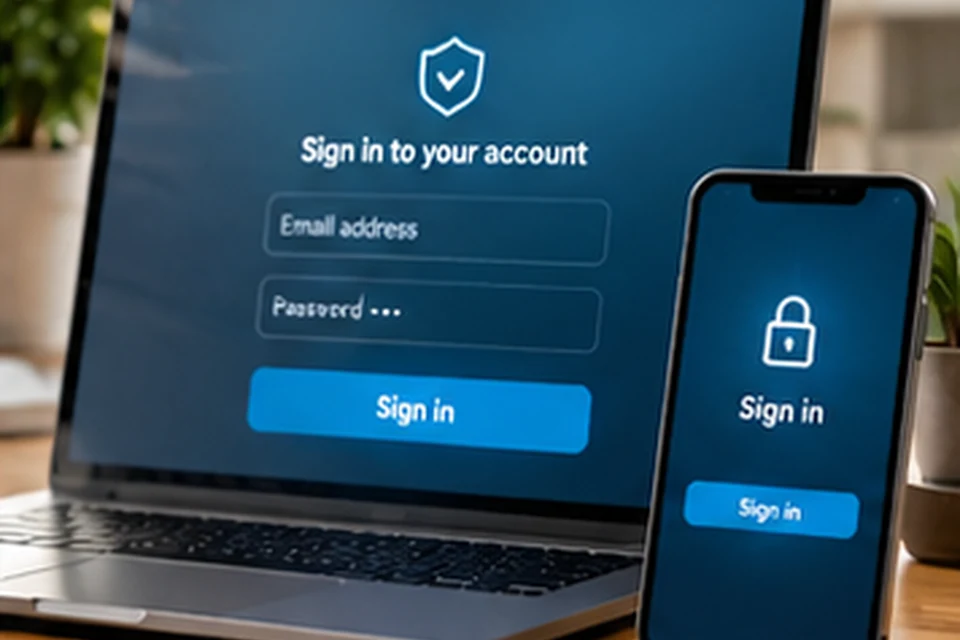
Workflowy login works the same way across the web, desktop and mobile apps, because every version connects to one account. Once you sign in, the outline you see is the same everywhere, and changes made on one device appear on the others. This article walks through each platform and explains how to solve the sign-in problems people run into most.
Signing In on the Web
Open workflowy.com in a current browser and choose the log in option at the top of the page. Enter the email address and password tied to your account, or use a connected sign-in method if you created the account that way.
After a successful sign-in, the home outline loads immediately. Bookmark the page, since the browser usually keeps you signed in until you log out or clear site data.
Browser tips
- Keep the browser updated for the best editing experience.
- Allow cookies for workflowy.com so the session stays active.
- Use a private window on shared computers and log out afterwards.
Signing In on the Desktop App
The desktop app for Windows, macOS and Linux opens to a sign-in screen on first launch. Use the same credentials you use on the web, and the app downloads your outline into its window.
If you have not installed it yet, the platform download walkthrough explains which file to choose. You can also start from the download section on the homepage.
Signing In on Android and iPhone
Install the app from Google Play or the App Store, open it and choose to log in. Enter your account details, and the mobile app syncs the full outline so you can capture ideas on the go.
Mobile apps typically stay signed in between sessions. That makes the phone a fast capture tool, because opening the app lands you straight in your lists.
Creating an Account for the First Time
New users can create an account from the same screens. A sign-up needs an email address and a password, after which you land in an empty outline ready for your first bullet.
The free Basic plan includes the core features with a monthly bullet allowance. The pricing comparison explains when an upgrade starts to make sense.
Fixing Common Sign-In Problems
Most issues come down to credentials, connection or browser storage. Working through the table below usually solves the problem within a few minutes.
| Problem | Likely cause | What to try |
|---|---|---|
| Password not accepted | Typo, caps lock or old password | Retype carefully, then use the password reset link |
| Reset email missing | Spam filter or wrong address | Check spam and promotions folders, confirm the address |
| Signed out repeatedly | Cookies cleared or blocked | Allow cookies for workflowy.com in browser settings |
| Changes not syncing | Offline device or stale session | Reconnect, then reload or reopen the app |
| Wrong outline appears | Signed in to a second account | Log out and sign in with the intended email |
Resetting a forgotten password
Choose the forgotten password option on the sign-in screen and enter your account email. Follow the link in the message you receive, set a new password and sign in again on each device.
Keeping Your Account Secure
A strong, unique password is the simplest protection for an outline that may hold work plans and personal notes. A password manager makes long passwords practical and fills them in on every device.
- Never type your password into look-alike pages reached from unknown links.
- Log out of shared or public computers when you finish.
- Review shared lists from time to time and remove access that is no longer needed.
- Keep the apps and your operating system updated.
Staying Signed In Across Devices
Using several devices at once is normal for Workflowy users. Each device keeps its own session, so signing out on a phone does not sign you out on your laptop.
When a device is lost, change your password from a trusted device. That step protects the account and requires fresh sign-ins everywhere else.
Signing In Through the Browser Clippers
The Chrome and Firefox clippers need an active Workflowy session to send pages into your outline. Signing in to workflowy.com in the same browser usually gives the extension what it needs.
If a clipper reports that you are signed out, open workflowy.com in a new tab, sign in and try again. Browser privacy settings that block site data can interrupt this connection, so allow cookies for the site when needed.
Working With More Than One Account
Some people keep separate accounts for work and personal notes. Each account has its own outline, so make sure you sign in with the right email before adding content.
Shared lists are often a simpler alternative to multiple accounts. Sharing one branch with a colleague keeps work and personal material in a single outline while still giving others access to the right part.
- Use separate browser profiles for separate accounts.
- Label each desktop or browser profile clearly.
- Prefer sharing branches when collaboration is the goal.
Signing Out Safely
Logging out is found in the account or settings menu of each app. Signing out of a shared computer prevents the next person from seeing your outline.
On personal devices, staying signed in is usually more convenient. Combine that with a screen lock on your phone and computer so your notes stay protected when you step away.
When to sign out
- After using a library, school or office computer.
- Before lending or selling a device.
- When switching between work and personal accounts.
What Happens After You Sign In
The first screen after login is your home outline, the top level of every list you own. Shared lists from other people appear inside your tree as well, so collaboration does not require a separate workspace.
Any changes you make are saved automatically, without a save button. If a device goes offline, keep it open and connected again soon so pending edits reach the rest of your devices.
- Home shows all top-level bullets you own.
- Shared branches appear within your outline.
- Edits save automatically as you type.
Conclusion
Workflowy login stays simple because one account powers the web, desktop and mobile apps. Sign in with the same email and password everywhere, keep cookies enabled in your browser and use the reset option whenever a password slips your mind.
With access sorted, explore the key app features to get more from every outline.