Workflowy Download for Windows, Mac, Linux and Mobile
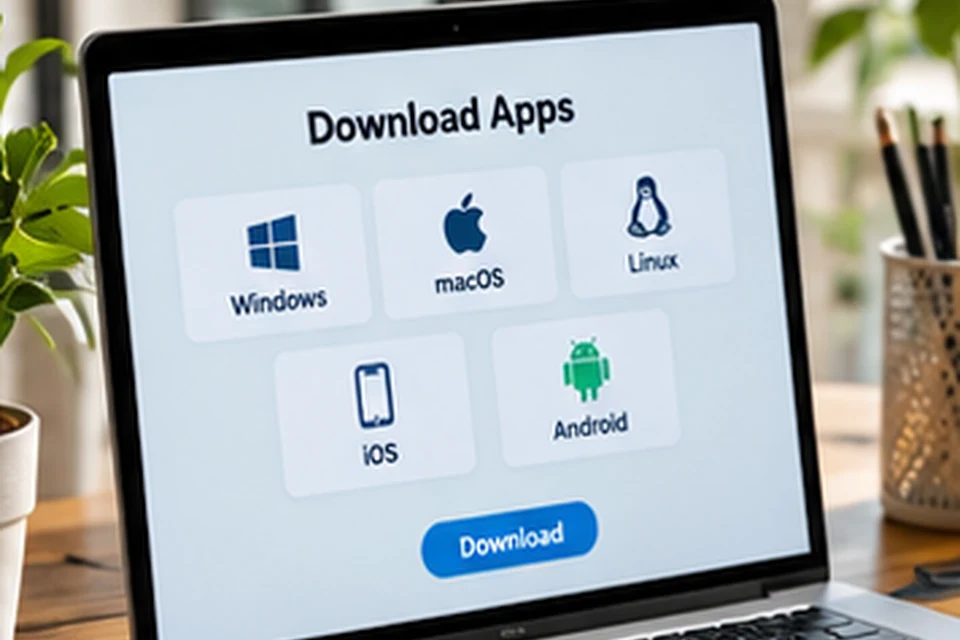
Workflowy download options cover every major platform, so one outline of notes, tasks and projects can follow you from a work laptop to the phone in your pocket. Desktop builds exist for Windows, macOS and Linux, while Android and iPhone users install the app from their official stores. Below you will find the right file for each system, clear install steps and a short checklist.
Which Workflowy Download Fits Your Device
Your operating system decides the file, and on Linux your distribution's package format matters too. Every desktop link on this site points to the latest release asset published in the Workflowy desktop repository on GitHub, so the address stays the same even after a newer build ships.
| Platform | File or store | Best for |
|---|---|---|
| Windows | WorkFlowy-Installer.exe | Standard Windows PCs and laptops |
| macOS | WorkFlowy.dmg | MacBook, iMac and Mac mini |
| Linux (portable) | WorkFlowy-x86_64.AppImage | Most 64-bit distributions, no install needed |
| Debian, Ubuntu, Mint | WorkFlowy-amd64.deb | apt-based systems |
| Fedora, openSUSE, RHEL | WorkFlowy-x86_64.rpm | rpm-based systems |
| Android | Google Play listing | Android phones and tablets |
| iPhone and iPad | App Store listing | iOS and iPadOS devices |
The Linux file names point to 64-bit x86 processors. Anyone on an ARM-based Linux machine can still reach the same account through the web app in a modern browser.
Installing Workflowy on Windows
Running WorkFlowy-Installer.exe starts a normal setup flow. Windows can show a SmartScreen notice for files downloaded from the internet, so read the prompt details carefully before you continue, then allow the installer to finish.
After setup, Workflowy appears in the Start menu. Open it, sign in with your existing account or create one, and your outline loads exactly as it looks in the browser.
Tips for a clean Windows setup
- Save the installer to a folder you can find again, such as Downloads.
- Close older Workflowy windows before installing a newer build.
- Pin the app to the taskbar for one-click capture during the day.
Installing Workflowy on macOS
Opening WorkFlowy.dmg mounts a disk image with the app inside. Drag the Workflowy icon into the Applications folder, eject the disk image and launch the app from Launchpad, Spotlight or Finder.
The first launch may trigger a macOS confirmation for apps downloaded from the internet. Confirm only when the prompt names the app you expect, then sign in to load your lists.
Installing Workflowy on Linux
Linux users can pick between a portable AppImage and native packages. The AppImage suits people who switch distributions or prefer not to install system packages, while DEB and RPM files integrate with the desktop menu and the system package manager.
Running the AppImage
Mark the file as executable, then start it from a terminal or your file manager. A typical command looks like chmod +x WorkFlowy-x86_64.AppImage, followed by ./WorkFlowy-x86_64.AppImage.
Installing DEB and RPM packages
On Debian or Ubuntu, sudo apt install ./WorkFlowy-amd64.deb installs the package and resolves dependencies. On Fedora, sudo dnf install ./WorkFlowy-x86_64.rpm does the same job, and other rpm-based systems use their own package tool.
Getting Workflowy on Android and iPhone
Mobile versions come from the official stores rather than direct files. Android users open the Google Play listing, and iPhone or iPad users open the App Store listing, then tap install as with any other app.
Signing in with the same account brings your full outline to the phone. Edits made on mobile sync back to desktop and web once a connection is available.
Browser Extensions for Quick Capture
Two small add-ons make saving web pages faster. The Clip to Workflowy extension works in Chrome, and a Workflowy clipper is listed on the Firefox add-ons site.
Both send a page title and link into your outline, which helps when you collect research, reading lists or reference material while browsing.
Checklist Before You Install
- Confirm your operating system and, on Linux, your processor type.
- Use the official repository or store links rather than mirror sites.
- Keep your account email and password ready for the first sign-in.
- Review requested permissions on mobile before you accept them.
- Update the app when a new release becomes available.
Desktop App or Web App
Both options open the same account, so the choice comes down to preference. The desktop app gives Workflowy its own window, which keeps notes one shortcut away instead of buried among browser tabs.
The web app suits shared or locked-down computers where installing software is not allowed. Many people use both, relying on the desktop window at their main machine and the browser elsewhere.
| Need | Better option |
|---|---|
| Dedicated window and taskbar or dock access | Desktop app |
| No installation rights on the computer | Web app |
| Capture on the move | Android or iPhone app |
| Saving pages while browsing | Browser clipper |
Keeping the App Updated
New desktop builds appear as releases in the official repository. Because the links on this site always point to the latest asset, downloading again from the same button fetches the newest version.
Mobile apps update through Google Play and the App Store like any other app. Turning on automatic updates keeps fixes and new features arriving without extra effort.
Choosing between Linux formats
Pick the DEB or RPM package when you want menu integration and updates handled through files you install once. Choose the AppImage when you prefer a single portable file that runs without touching system packages.
Frequently Asked Questions
Is the Workflowy desktop app free to download?
Installing the desktop and mobile apps costs nothing. Account limits depend on your plan, which the Workflowy pricing guide explains in detail.
Do I need the desktop app if I already use the browser?
No, the web app works on its own. The desktop app mainly adds a dedicated window, taskbar or dock access and a more focused workspace.
Where do the desktop files come from?
Each desktop link points to the latest asset in the Workflowy desktop releases on GitHub. The GitHub releases article covers how that page works.
Conclusion
Workflowy download choices are simple once you match the file to your system: the EXE for Windows, the DMG for macOS, and an AppImage, DEB or RPM for Linux. Mobile users install from Google Play or the App Store, and browser clippers add quick capture on top.
Whichever route you take, one account keeps every outline in sync. Head to the download section to grab the right file for your device.