Workflowy AI: Chat With Your Notes and Use AI Nodes
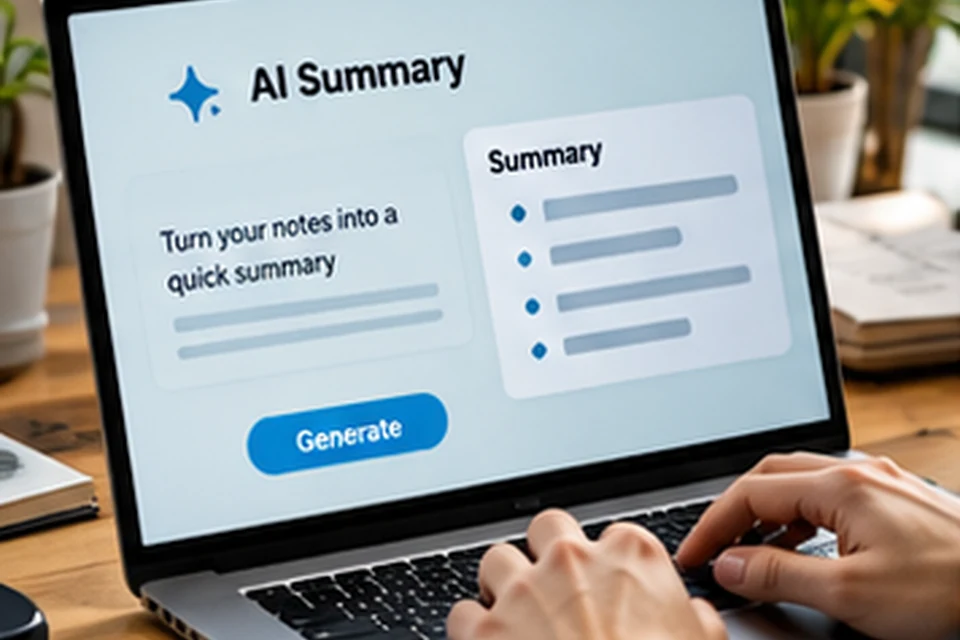
Workflowy AI brings artificial intelligence directly into your outline, so you can question, summarise and reshape notes without copying them into another tool. According to the Workflowy help pages, it covers two main ideas: chatting with your notes and running prompts inside special AI nodes. This article explains both, shows practical uses and covers the privacy points worth knowing.
What Workflowy AI Does
Workflowy describes its AI as a set of features for searching, questioning, processing and transforming notes. Instead of scrolling through years of bullets, you ask a question and receive an answer drawn from your own outline.
The assistant can also reference the notes it used. That makes answers easier to verify, because you can jump to the source bullet and read the surrounding context.
Chatting With Your Notes
The chat opens from the Workflowy AI button at the bottom right of the screen. By default, it focuses on the content currently in view, which keeps answers tightly connected to the list you are working on.
You can widen the scope whenever you need more context. Giving a clear instruction such as asking it to search your notes for a topic tells the assistant to look across your whole outline.
Good questions to ask
- Summarise the decisions recorded in this meeting list.
- Find every note that mentions the spring launch.
- List open tasks under this project that have no date.
- Group these ideas into a few clear themes.
Working With AI Nodes
AI nodes are special bullets that let you use AI inside the outline itself. You type a prompt, such as summarise this section or rewrite this as an email, and the result appears right in your document.
Because the output lands as bullets, you can edit, move, tag or complete it like any other content. That keeps AI results part of your normal workflow rather than a separate chat history.
Practical Ways to Use Workflowy AI
AI works best on content you already have. The table below pairs common situations with the kind of request that tends to help.
| Situation | Helpful request | Result |
|---|---|---|
| Long meeting notes | Summarise as action items | A short task list to assign |
| Scattered research | Search my notes for a topic | Related bullets gathered in one answer |
| Rough draft outline | Rewrite as a short email | Readable prose inside an AI node |
| Brainstorm list | Group ideas into themes | Clusters you can turn into sections |
| Weekly review | What did I complete this week | A recap pulled from your lists |
Results depend on how clearly notes are written. Descriptive bullets, consistent tags and tidy project lists give the assistant far better material to work with.
Privacy and Data Considerations
Workflowy states that its AI is powered by multiple third-party technologies and points users to its terms for details. Reading those terms is worthwhile before using AI on sensitive content such as client data or personal records.
A sensible habit is to keep confidential material in separate lists and use AI on general planning, writing and research notes. That keeps your experiments useful while respecting any obligations you have to others.
Questions to settle first
- Does your workplace allow AI processing of the notes involved?
- Do shared lists contain other people's information?
- Would a summary be safer than sending full details?
Tips for Better AI Answers
Short, specific prompts work better than vague ones. Naming the list, the format you want and the length you expect helps the assistant produce an answer you can use straight away.
- Zoom into the relevant bullet before asking about it.
- Name chats clearly so past conversations are easy to find.
- Check cited notes before acting on an important answer.
- Edit AI output like any draft rather than accepting it as final.
Preparing Notes for Better AI Results
Clearly organised outlines produce noticeably better answers. Parent bullets with clear names, such as Client meetings or Book research, tell the assistant what each branch contains before it reads the details.
Tags help as well, because a consistent tag gives the AI an easy signal for related content. Short, complete sentences in bullets are easier to summarise than fragments that only make sense to you.
Quick clean-up before asking
- Rename vague parent bullets with descriptive titles.
- Merge duplicate lists that cover the same topic.
- Add dates to meeting and journal entries.
Where AI Fits in a Daily Routine
Many people use AI at the edges of the day. A morning prompt can summarise yesterday's notes into a short plan, while an evening prompt can list what was finished and what remains open.
Writers often use AI nodes to turn a rough outline into a first paragraph, then edit the result by hand. Researchers use chat to find old notes on a topic before starting new reading.
| Moment | Prompt idea |
|---|---|
| Start of day | Turn yesterday's notes into today's priorities |
| Before a meeting | Summarise previous notes with this person |
| End of week | List completed tasks and open questions |
Limits Worth Keeping in Mind
AI answers are only as good as the notes behind them and the model's reading of those notes. Summaries can miss nuance, and an answer may sound confident even when a detail is wrong, so treat output as a helpful draft.
Keep decisions, numbers and commitments anchored to the original bullets. Checking the referenced notes takes seconds and prevents small errors from spreading into plans or messages.
FAQ
Where do I find Workflowy AI?
The help pages describe a Workflowy AI button at the bottom right of the interface. Clicking it opens the chat panel for your notes.
Does it read my whole outline automatically?
By default, it focuses on what is on screen. You can ask it to search all your notes when you want broader context.
Is AI available on every plan?
Availability and limits can change over time. Check the official pricing and help pages, and see the pricing comparison for plan basics.
Conclusion
Workflowy AI turns an outline into something you can talk to, whether you want a quick summary, a search across old notes or a rewritten draft inside an AI node. Clear notes and specific prompts make the biggest difference to the quality of answers.
Use it on everyday planning and writing, review the terms before processing sensitive data, and pair it with the core app features for a faster workflow.