Workflowy App Features That Make Outlining Easier
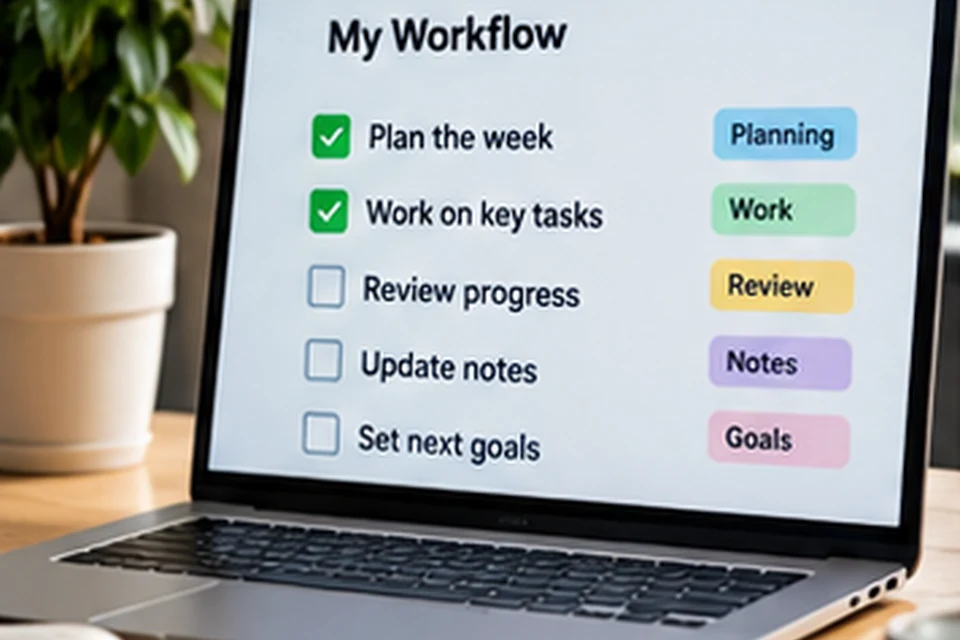
Workflowy app features all build on one simple idea: everything is a bullet, and every bullet can hold more bullets. That structure lets a grocery list, a book outline and a company roadmap live in the same place without folders or separate documents. Below are the features that matter most and how to use each one well.
Infinite Nested Bullets
Every item in Workflowy can contain child items, and those children can contain more, with no practical depth limit. Pressing Tab indents a bullet under the one above it, while Shift and Tab moves it back out.
Nesting turns big ideas into manageable pieces. A project becomes phases, phases become tasks and tasks become small checklists, all visible in a single tree.
Zoom Into Any Bullet
Clicking a bullet's dot zooms into it, so that bullet becomes the page title and only its children remain visible. A breadcrumb trail at the top shows where you are and lets you step back out.
Zooming acts like opening a document, without ever creating one. It keeps focus on the current task while the rest of your outline waits quietly in the background.
When zooming helps most
- Writing a long section of an article or report.
- Running a meeting from a single agenda bullet.
- Sharing one branch of an outline with a colleague.
Tags, Search and Filters
Typing a word with a hash sign creates a tag, and an at sign is commonly used for people. Clicking any tag filters the outline to matching bullets, which makes it simple to see every item for a project or person.
The search bar works the same way for any text. Combined with tags, it turns a large outline into a quick, searchable database without extra setup.
Mirrors and Boards
Mirrors place a live copy of a bullet in another location. Editing either copy updates both, which is ideal for tasks that belong to a project list and a daily plan at the same time.
Boards display a bullet's children as columns, similar to a kanban layout. You can drag items between columns to track work stages, and the project organisation article shows a full example.
Completing, Collapsing and Moving Items
Marking a bullet complete crosses it out, and completed items can be shown or hidden. That keeps a clear record of progress without cluttering your active view.
Collapsing hides children behind a parent bullet, while drag and drop moves whole branches anywhere in the tree. Reorganising a plan takes seconds rather than rewriting documents.
Notes, Files and Formatting
Each bullet can carry a note underneath for longer text, links or details. Files and images can be attached as well, within the upload allowance of your plan.
Basic formatting such as bold, italic, colours and highlights helps important lines stand out. Used sparingly, it improves scanning without turning the outline into a busy page.
Sharing and Collaboration
Any bullet can be shared through a link, with permissions that decide whether others can view or edit. People only see the branch you share, never the rest of your outline.
That makes Workflowy handy for team checklists, family plans and client agendas. Each shared list stays part of your own tree while others work on it.
Feature Overview
| Feature | What it does | Typical use |
|---|---|---|
| Nesting | Places bullets inside bullets | Breaking projects into steps |
| Zoom | Focuses on one bullet | Deep work on a single topic |
| Tags | Labels bullets for filtering | Projects, contexts and people |
| Mirrors | Live copies in two places | Daily plans linked to projects |
| Boards | Shows children as columns | Kanban-style task tracking |
| Sharing | Shares one branch by link | Team and family lists |
| Workflowy AI | Chats with and transforms notes | Summaries and rewrites |
Keyboard Habits That Speed Things Up
Workflowy is designed for typing. Enter creates a new bullet, Tab indents it and Shift with Tab moves it back out, so a structured outline appears without touching the mouse.
Completing items from the keyboard and using search to jump between branches keeps your hands on the keys. The app's own shortcut list, available in its help pages, shows every combination for your system.
Habits worth building
- Capture first, organise later, using a single inbox bullet.
- Indent as you type instead of fixing structure afterwards.
- Use search to jump rather than scrolling long trees.
Templates and Repeating Structures
Copying an existing branch is a quick way to reuse structure. A meeting template, weekly review or packing list can live in its own bullet and be duplicated whenever you need a fresh copy.
Keeping templates under one parent called Templates makes them easy to find. Adjust them over time as you notice which parts you actually use.
Exporting Your Outline
Workflowy lets you export bullets in formats such as plain text and formatted text, along with OPML for other outliners. Exporting is handy for pasting outlines into documents or keeping a personal backup.
Zoom into the branch you want first, so the export contains only that section. That keeps documents focused and avoids sharing unrelated notes.
Features That Work Well Together
The real strength of Workflowy appears when features combine. Tags gather tasks across projects, mirrors bring those tasks into a daily plan, and boards show the stage of each item at a glance.
A simple combination for most people is nesting for structure, tags for context and zoom for focus. Add mirrors and boards once those three feel natural.
- Nesting plus zoom for long writing projects.
- Tags plus search for people and contexts.
- Mirrors plus boards for daily planning.
FAQ
Does the Workflowy app work offline?
The desktop and mobile apps are designed for everyday use with sync when a connection returns. Keep apps updated and reconnect regularly so changes reach every device.
Are features different on mobile?
The core outline, zoom, tags and completion work on mobile. Some actions are simply faster with a keyboard on desktop.
Where can I learn about the AI features?
The Workflowy AI article covers chatting with notes and AI nodes.
Conclusion
Workflowy app features stay deliberately simple, yet nesting, zoom, tags, mirrors and boards cover a remarkable range of work. Learning a few of them at a time is the easiest way to build a system that fits how you think.
Start with nesting and zoom, add tags once lists grow, and grab the desktop or mobile app from the download section to use them everywhere.